
Browse topics
Create and manage a job card
A job card tracks one repair job from the moment the vehicle arrives until it's delivered back to the customer. It records what work was requested, what was done, which parts were used, and who did it.
Create the job card
Go to Job Cards → New Job Card. Creation is a three-step wizard:
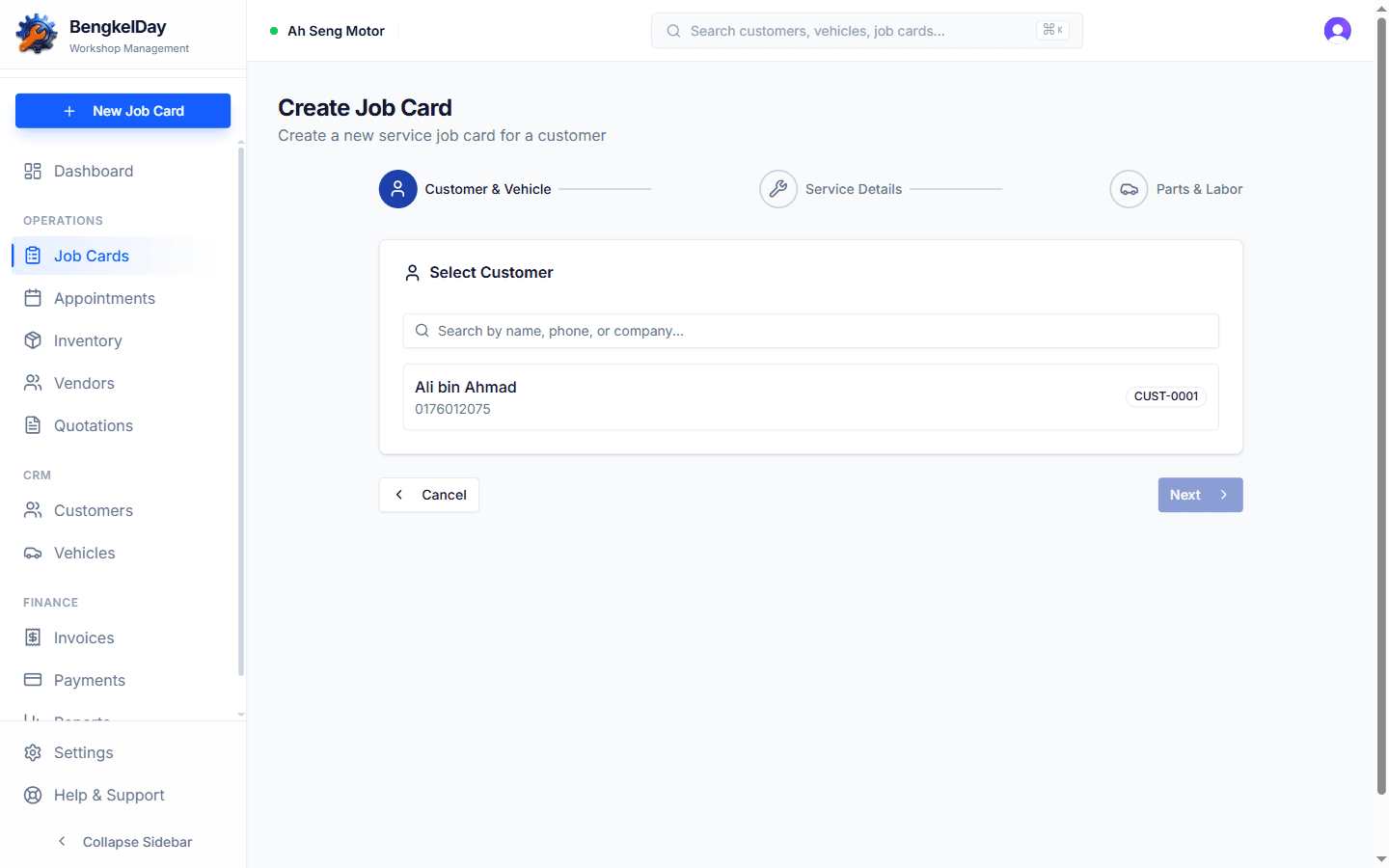
- Customer & Vehicle — search and select the customer, then their vehicle. If they're not in the system yet, add them first — see Add your first customer and vehicle.
- Service Details — describe the complaint or work requested (e.g. "aircond not cold, service 40k km") and assign a mechanic if you have team members set up.
- Parts & Labor — add the work lines:
- Services — labour charges like "Aircond service" or "Brake pad replacement"
- Parts — items from your inventory, or one-off parts typed in manually
Each line has a quantity and price, and the job card keeps a running total. BengkelDay assigns the job card number automatically when you save. These items carry over automatically when you create the invoice.
Track progress with statuses
Update the status as the job moves through your workshop — from Pending when the car arrives to Delivered when the customer collects it. Each status is explained in Job card statuses.
Take photos when the vehicle checks in — scratches, dents, fuel level. It protects you from disputes later. See Add photos to a job card.
Printing
Every job card has a print view — open the job card and click Print for a physical copy your mechanic can work from.
Still stuck?
Our team is happy to help — usually within a few hours.