
Browse topics
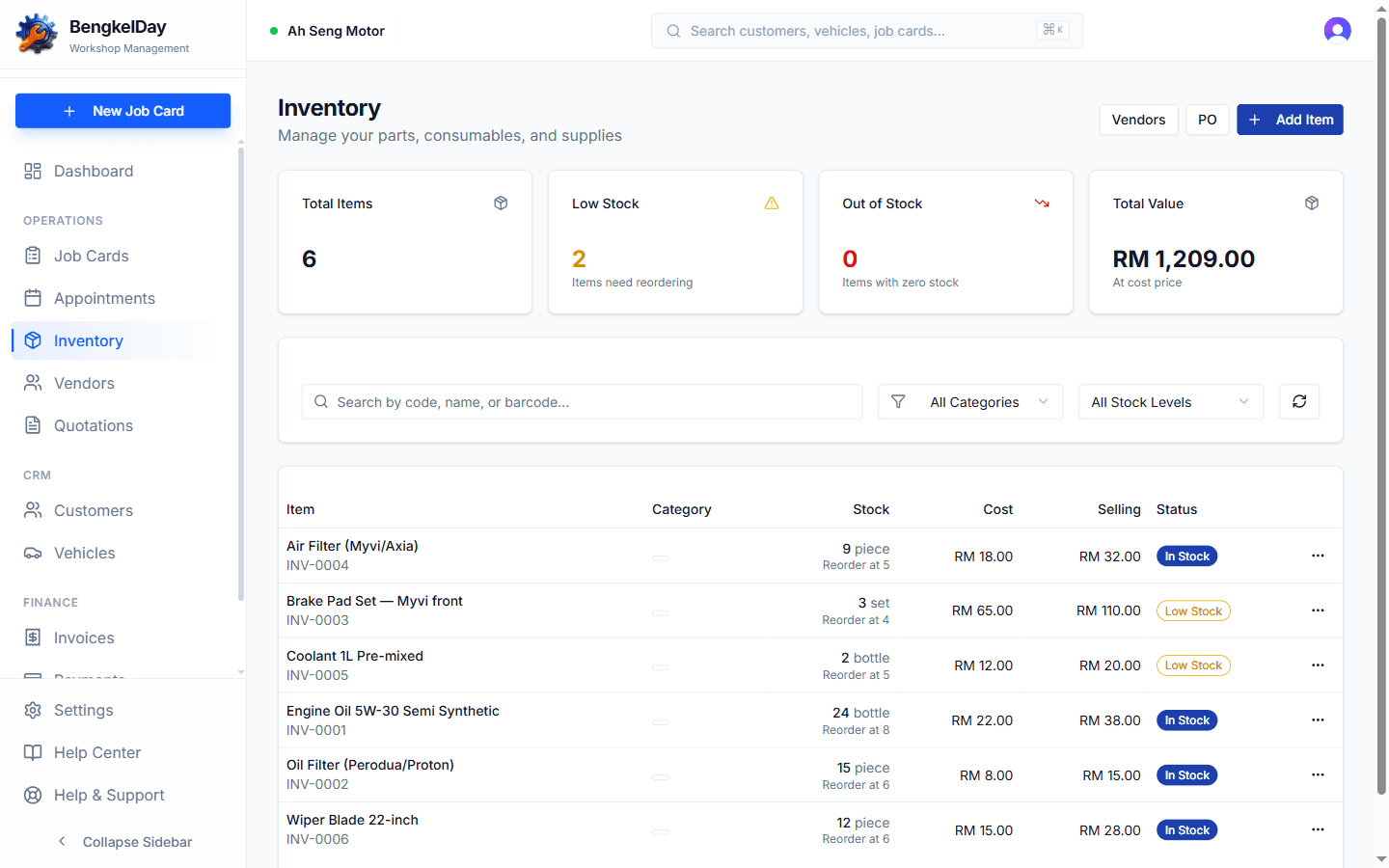
Add and track inventory items
Inventory keeps count of the parts on your shelf — engine oil, filters, brake pads — so you know what you have, what it cost, and when to reorder.
Add an item
- Go to Inventory → New Item.
- Fill in the essentials:
- Name and category (e.g. "Engine Oil 5W-30", category "Lubricants")
- Unit — how you count it (bottle, litre, piece, set)
- Initial stock — how many you have right now
- Cost price (what you pay) and selling price (what you charge) in RM
- Optional but worth doing:
- Minimum stock and reorder level — powers the low-stock warnings
- Storage location — shelf or rack, so anyone can find it
- Barcode and preferred vendor — speeds up restocking later
- Save.
How stock moves
You rarely edit stock by hand. It moves automatically:
- Down when a part is added to a job card — used parts are deducted when the work is billed
- Up when you receive a purchase order from a vendor
- Manually only for corrections — see Stock adjustments
Low-stock warnings
Items at or below their reorder level are flagged in Inventory — filter by low stock to see everything that needs reordering in one list.
Inventory item limits by plan: FREE 50 items, STARTER 200, PRO 500, ENTERPRISE unlimited. See Plan limits explained.
Start with your top 20–30 fast-moving parts (oils, filters, brake pads) instead of trying to catalogue everything. You'll get 80% of the value in an afternoon.
Still stuck?
Our team is happy to help — usually within a few hours.