
Browse topics
Set up your public booking page
The booking page is a public link — bengkelday.com.my/book/your-workshop — where customers pick a date and time and book themselves in. They don't need an account or an app; you just share the link.
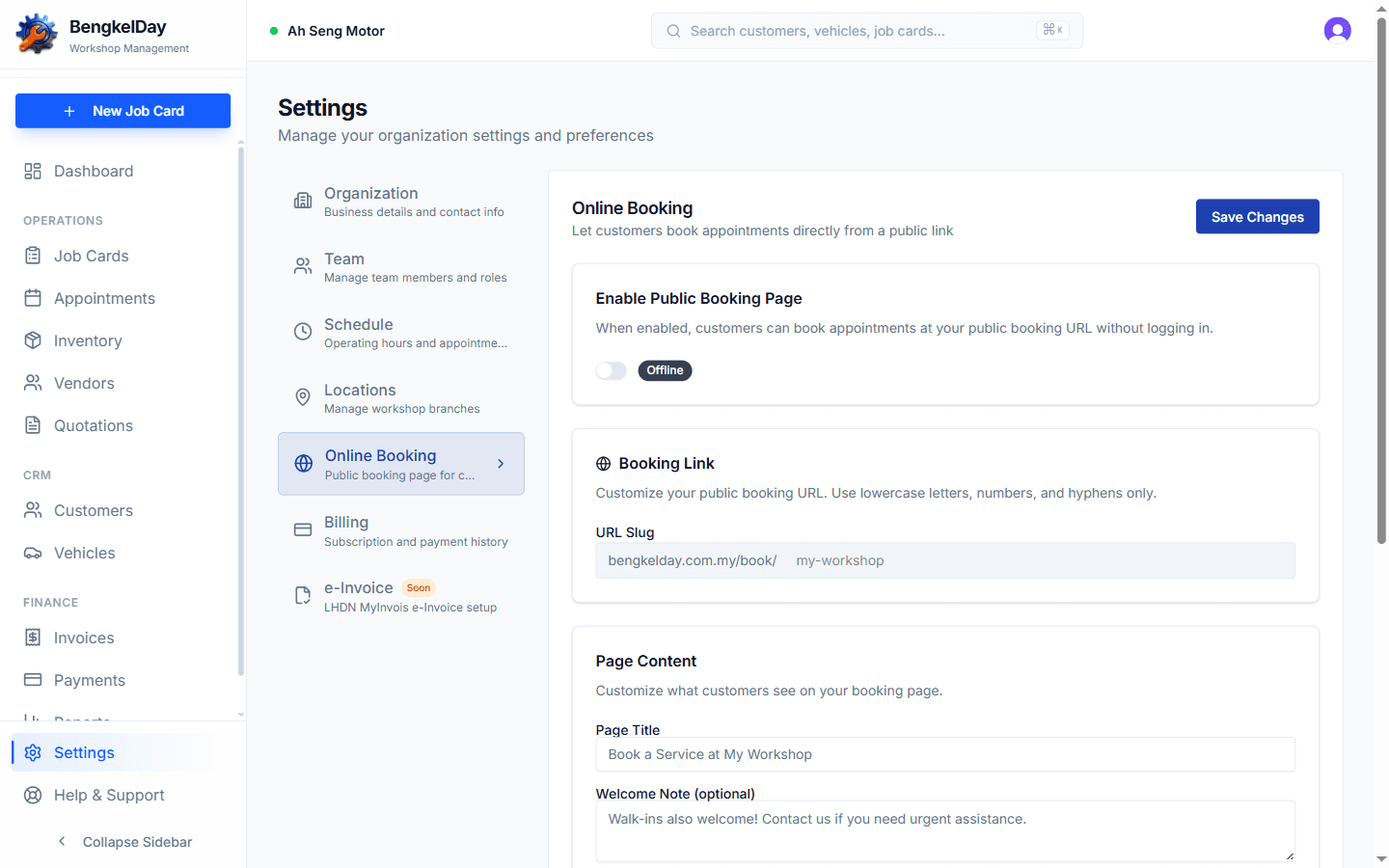
Enable it
- Go to Settings → Online Booking.
- Turn on Enable Public Booking Page.
- Choose your URL slug — the last part of your booking link (e.g.
ah-seng-motorgives youbengkelday.com.my/book/ah-seng-motor). Keep it short and recognisable. - Set the page title and welcome note customers will see.
- Click Save Changes, then open your link to see the page exactly as customers will.
Set your operating hours
The slots customers can pick come from your workshop schedule — set your working days and hours in Settings → Schedule so bookings only arrive when you're actually open.
Share the link
- Put it in your WhatsApp status and auto-reply
- Add it to your Facebook page and Google Business Profile
- Include it on invoices and quotations you send
When a booking comes in
New bookings appear in Appointments with Pending status, showing the customer's name, phone, and requested time. Confirm or manage them from there — see Manage appointments.
Test it yourself first: open your booking link on your phone and make a booking. You'll see exactly what your customer sees, and the test booking shows up in your Appointments list.
Still stuck?
Our team is happy to help — usually within a few hours.